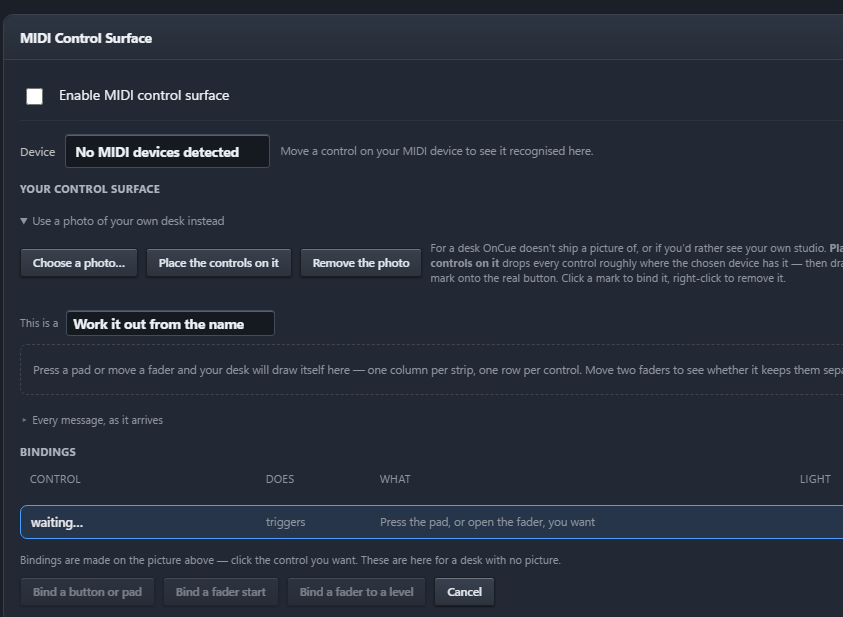
MIDI, keyboard & on-air lights
Map your MIDI controller's faders and buttons, set up keyboard shortcuts, and light your on-air sign when a mic opens.
OnCue Automation
Playout, scheduling, voice tracking, processing and streaming in one Windows app. Built by people who run a live station, for stations that need to sound great around the clock.
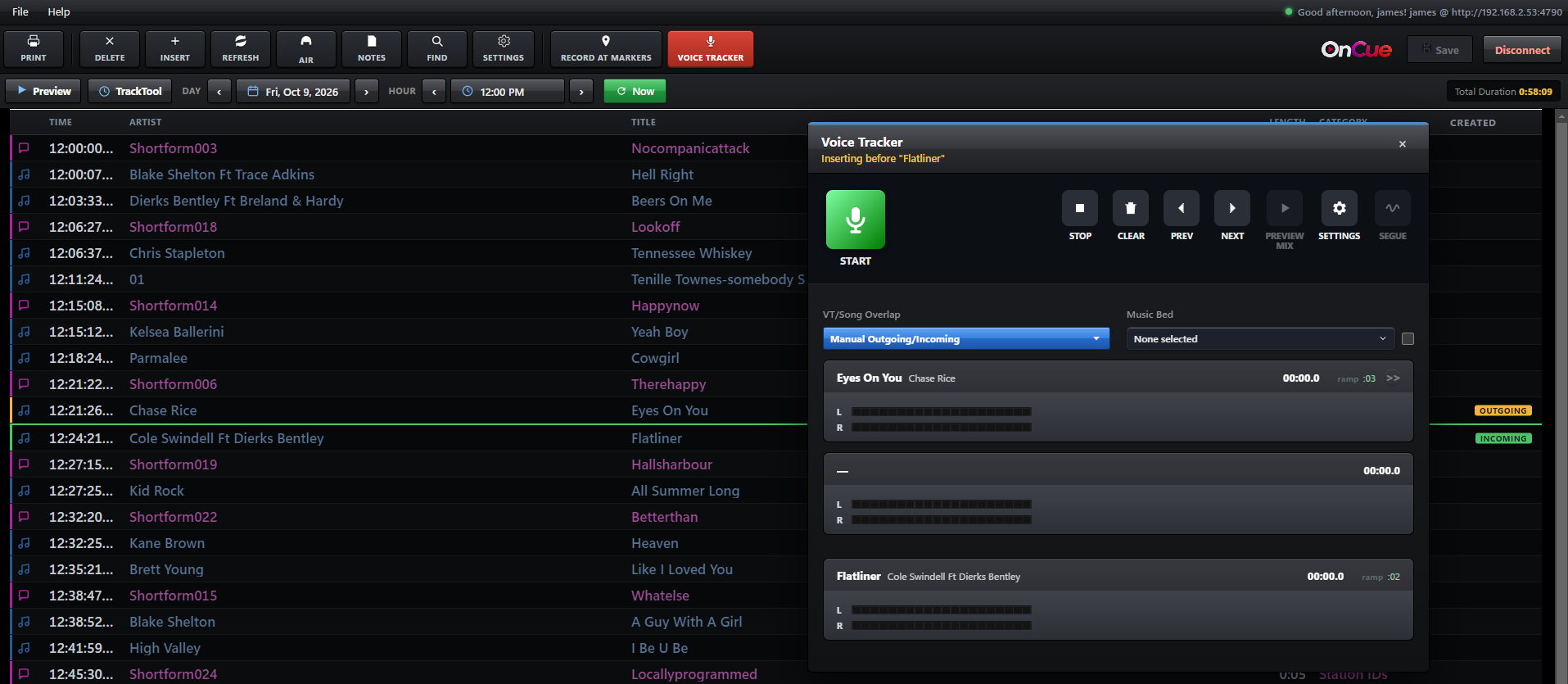
Remote voice tracking
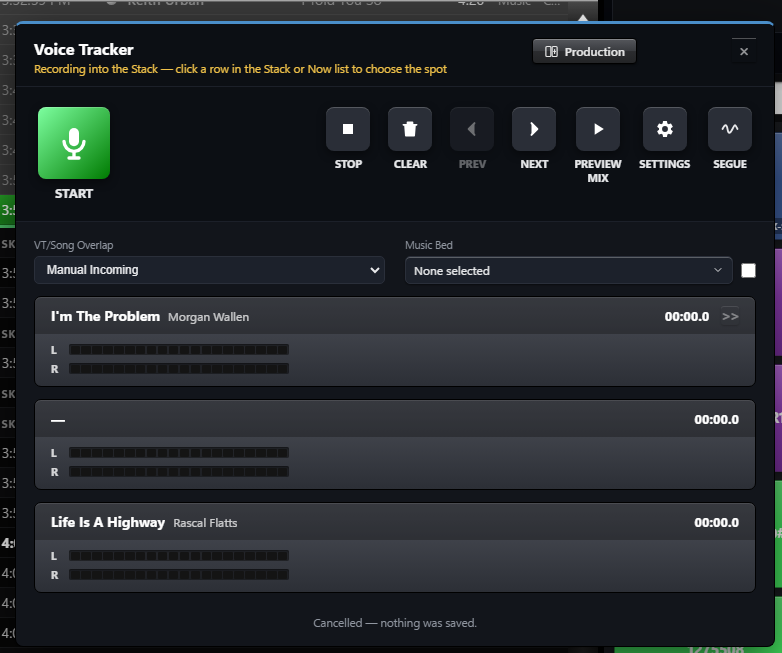
Your presenters open the station's real log from home, on the road or across the country. They hear the songs either side, record their break and send it in. You stay in control of what goes to air.
Segue editing
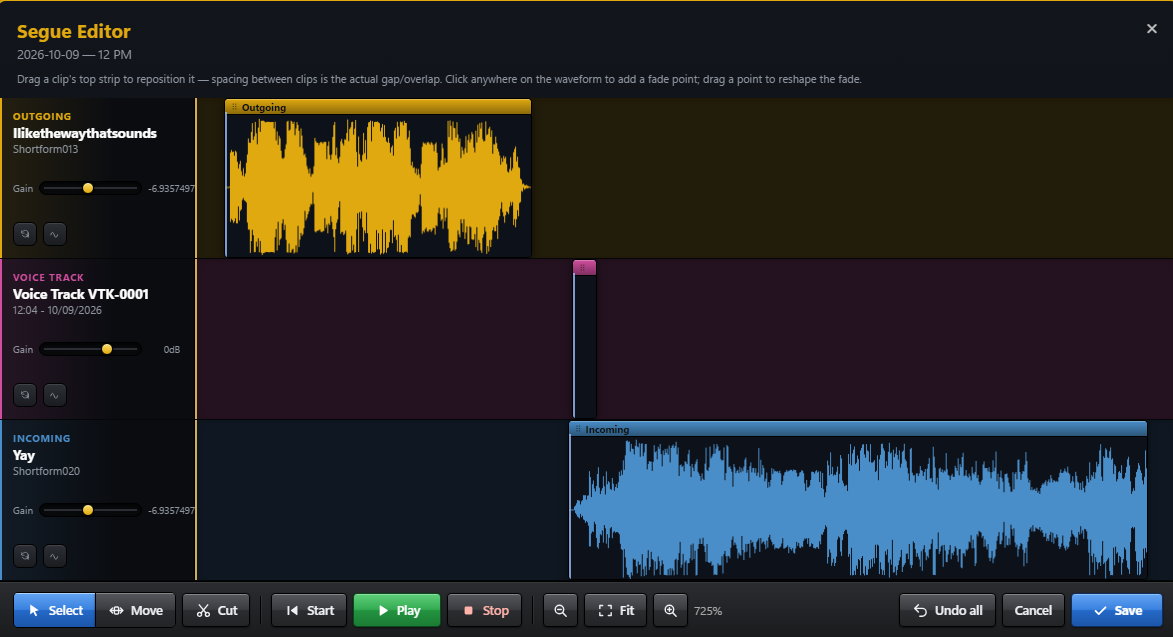
Line up the end of a song, your voice track and the next song on one timeline. Drag the fades and levels until it flows, then preview the whole break before it ever airs.
Time management
OnCue builds each hour to fit, fills short hours with something that actually fits, and won't start the next hour early. Song and artist separation is measured in real minutes, not just a number of songs.
Rotation builder
Lay out each hour with your categories, spots and timed events, and watch the running time add up as you go. New to building clocks? A step-by-step wizard takes you from "how many songs an hour" to a finished clock.
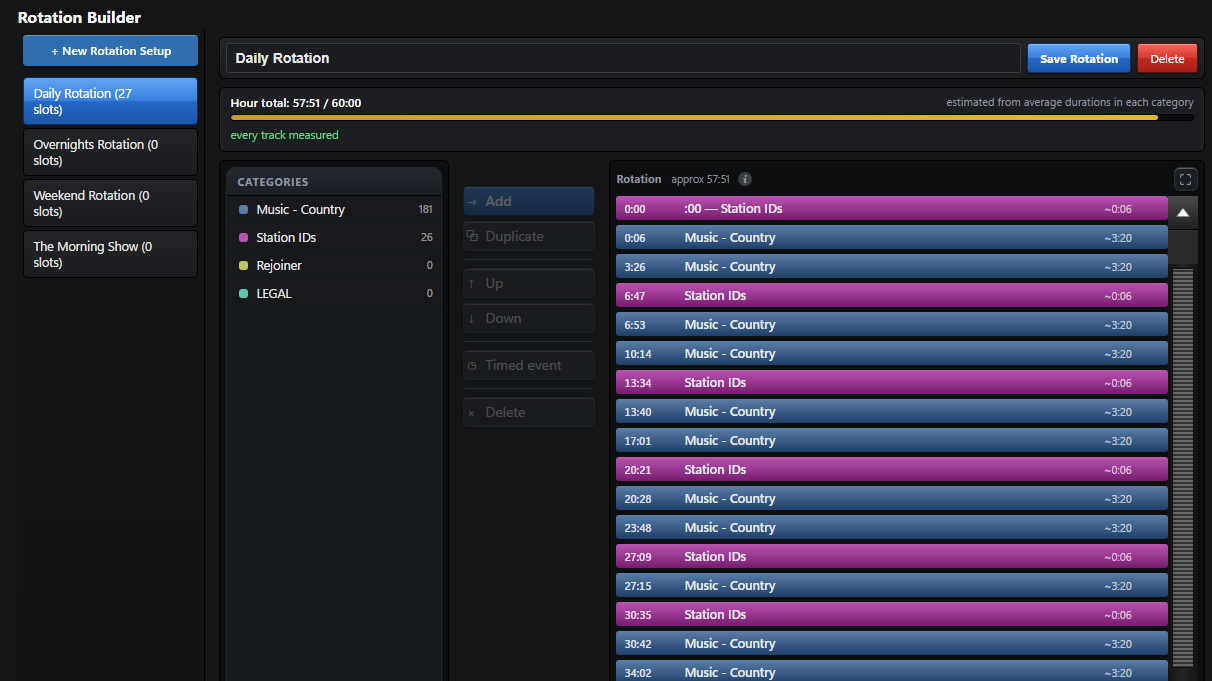
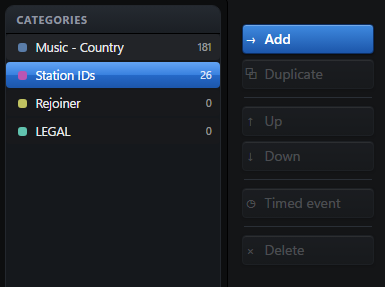
Each media category you create is available to create a new rotation. Simply click a media category and drag is over.
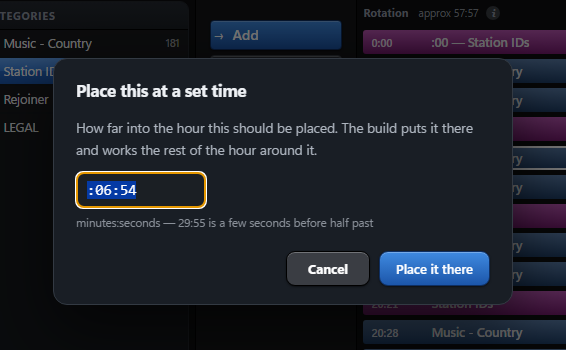
If you have an event that needs to air at a specific exact time, you can define it by a 'Timed Event'. OnCue will automatically adjust the schedule to play at the exact time.
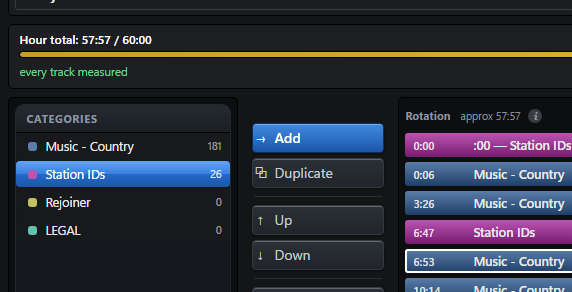
Rotations are built in 60min (1 hour) blocks. As you add categories, it counts towards the total hours duration and will indicate when you've reached a full hours programing.
Rotation timing
Assign clocks or custom playlists to each hour of the day, then set them to run daily, weekly or for a date range. A special weekend or holiday schedule simply takes priority over your regular week.
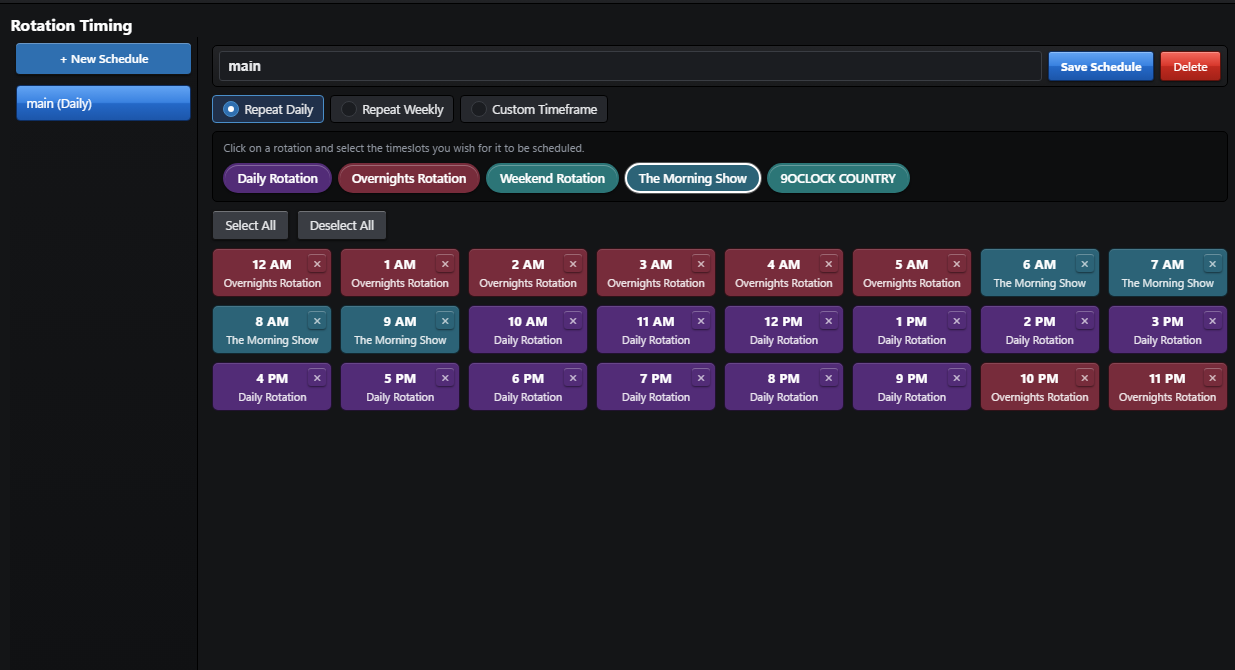
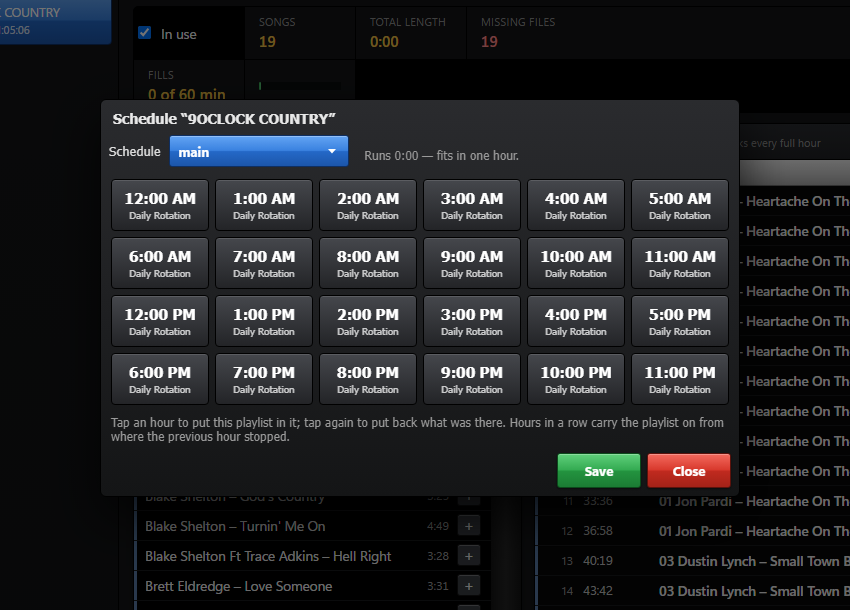
If you want to create a custom playlist (that is not handled by the rotation) you can do so on the custom playlist area. Setting a time frame and schedule will take priority over a regular scheduled item in the rotation.
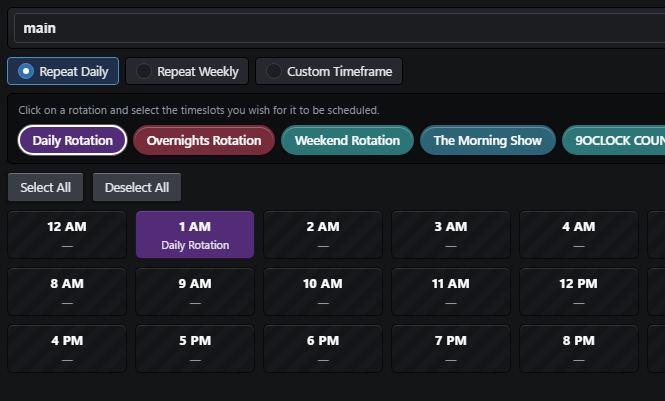
The rotations you build will display in the rotation timing area. Click a daytime slot to assign the rotation you built to that time of day.
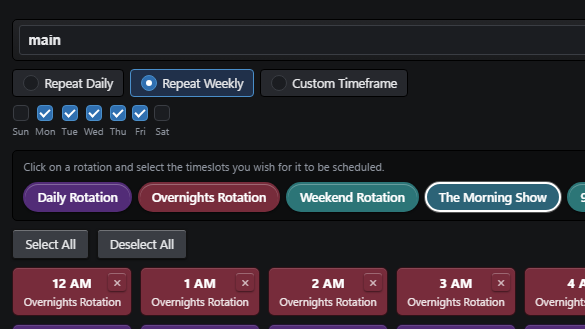
Each rotation can have a specific set of rules. For instance, you want to ONLY play a certain rotation on the weekends, you can select SAT/SUN and this rotation will only air this on the weekend.
Clock & schedule overview
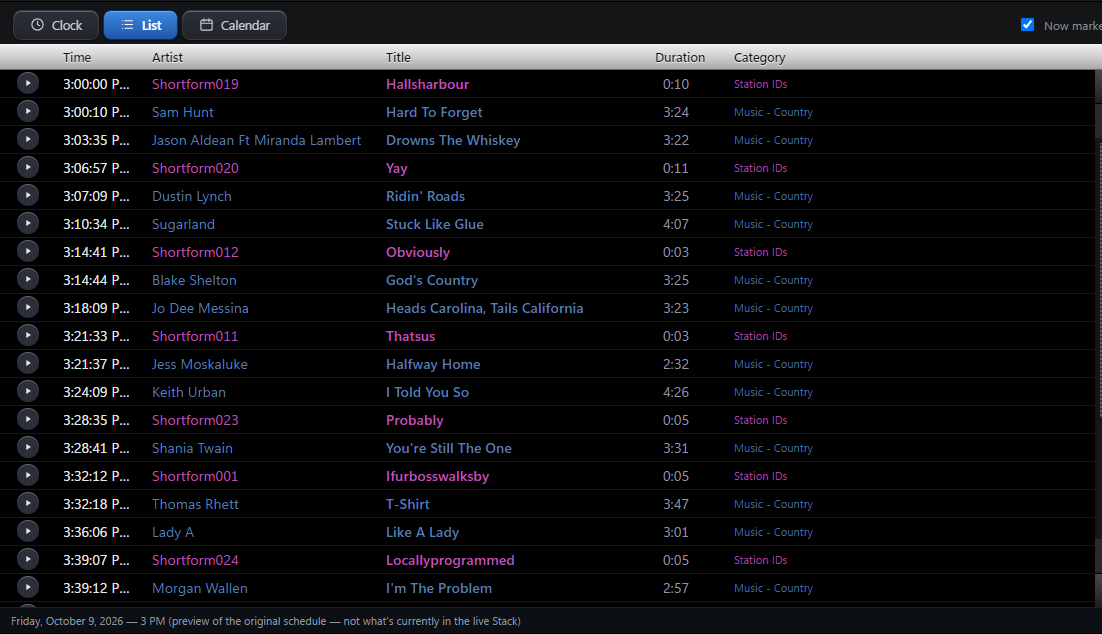
Check the day as a list, a month calendar showing which days are built, or a radio clock that places every item at its real minute, grouped by category. You'll spot an over-full hour before it ever airs.
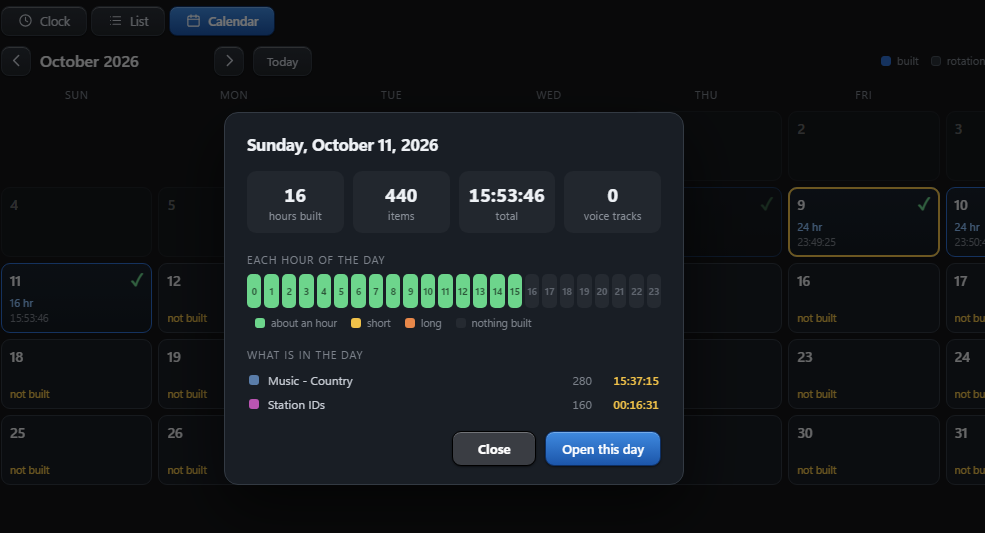
Calender view displays your rotation for each day, whether a rotation is short on content and what hours need attention.
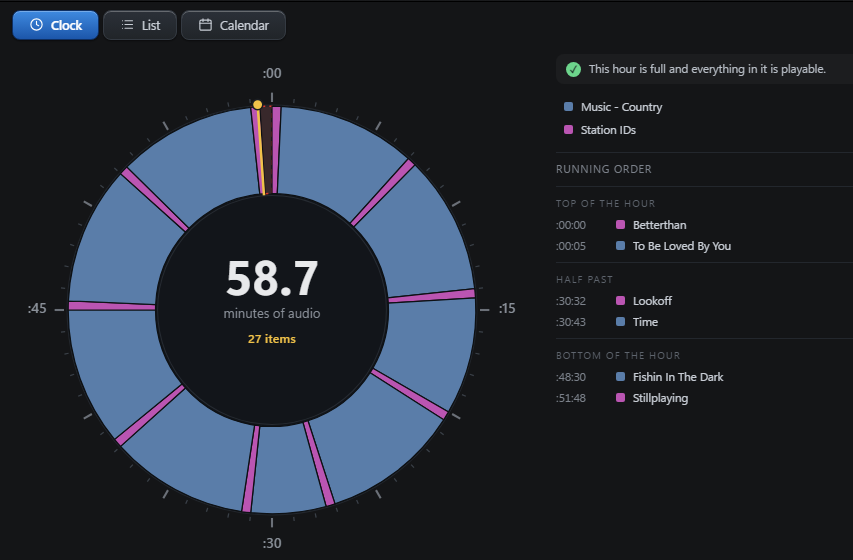
A clock will display the current hour and what rotations are assigned to each part of the hour.
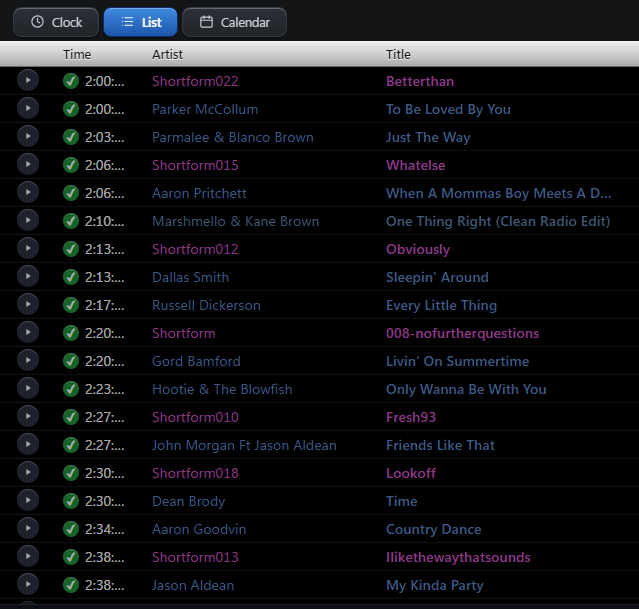
List view shows which specific song/station ids and content will air during the defined hour.
Equalization & processing
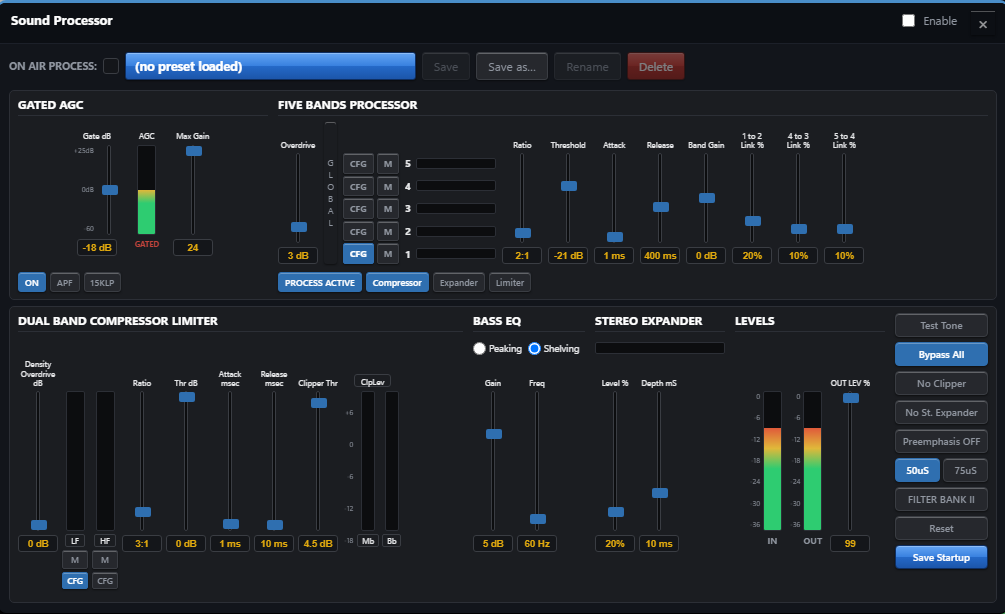
Multiband processing with simple controls shapes your station's sound, and broadcast-standard loudness levelling keeps every song, spot and voice track at the same level.
Direct encoder streaming
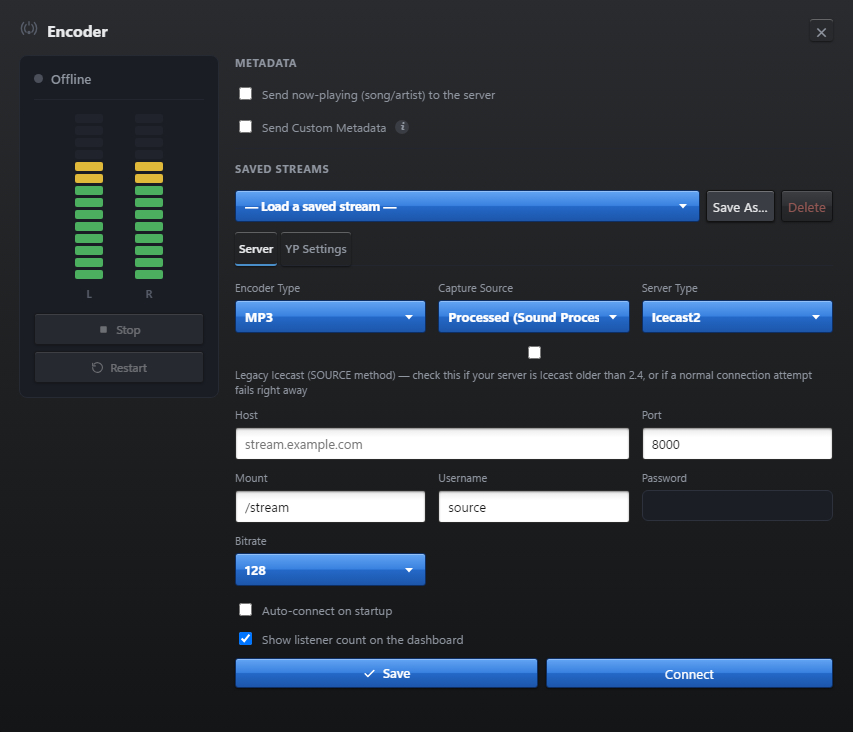
The encoder is built in, so there's no second program to run. Connect to Icecast or Shoutcast, and your song titles go out with the stream. If the connection drops, OnCue reconnects on its own.
Pairs with StreamWave. The song OnCue sends to your server is the one our players and widgets show on your website.
Full automation control
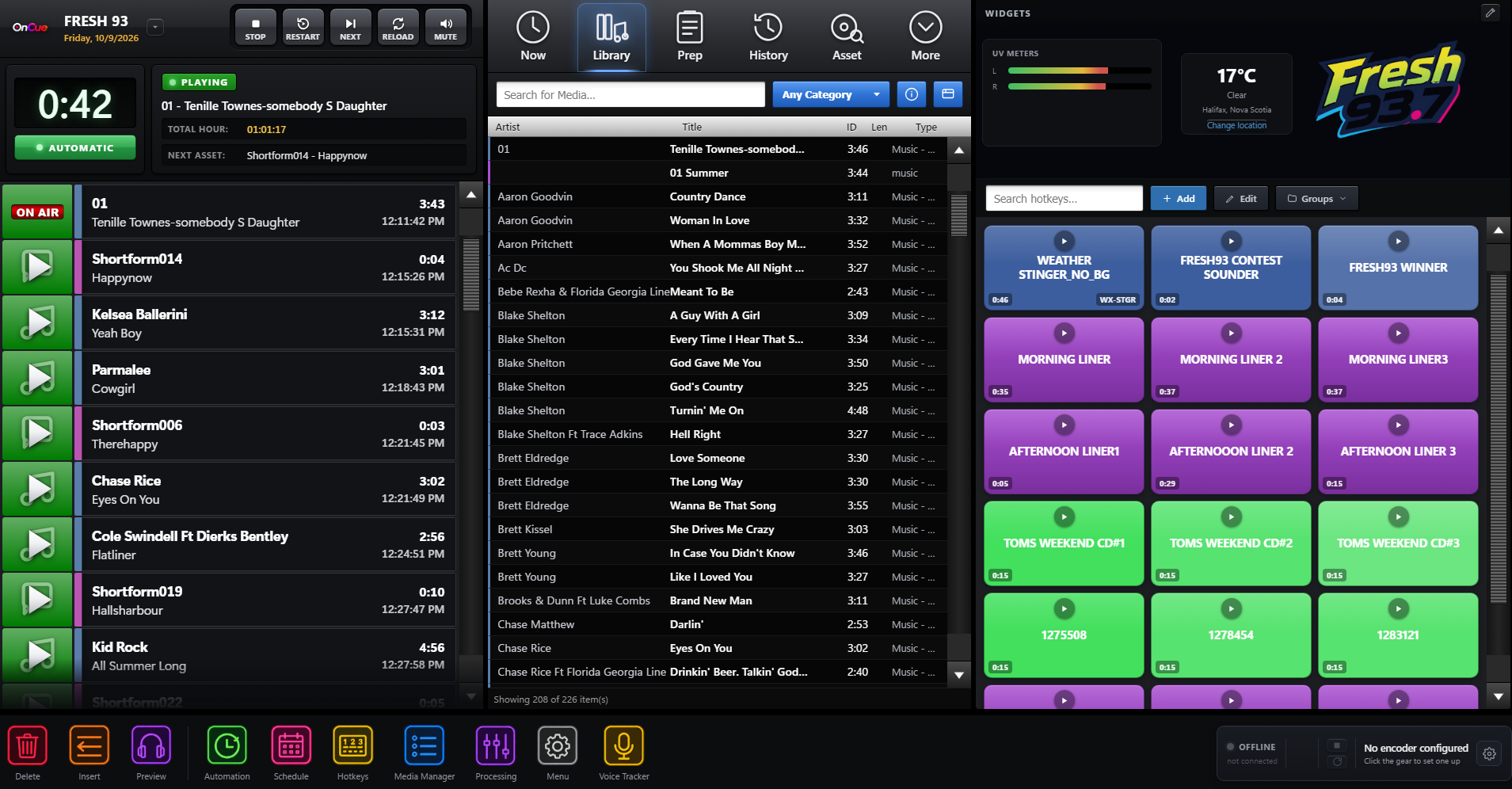
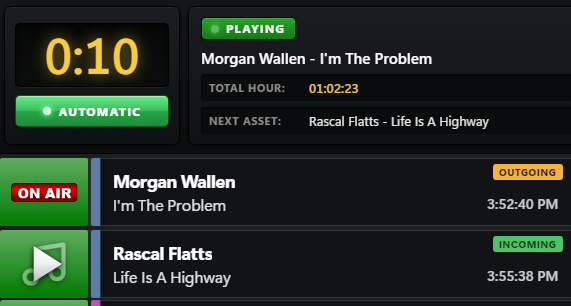
Let OnCue run the station for days on its own, or switch to manual and drive it live. When you hand back to automatic, it picks up right where the clock says you should be.
Your studio
Map your MIDI controller's faders and buttons, set up keyboard shortcuts, and light your on-air sign when a mic opens.
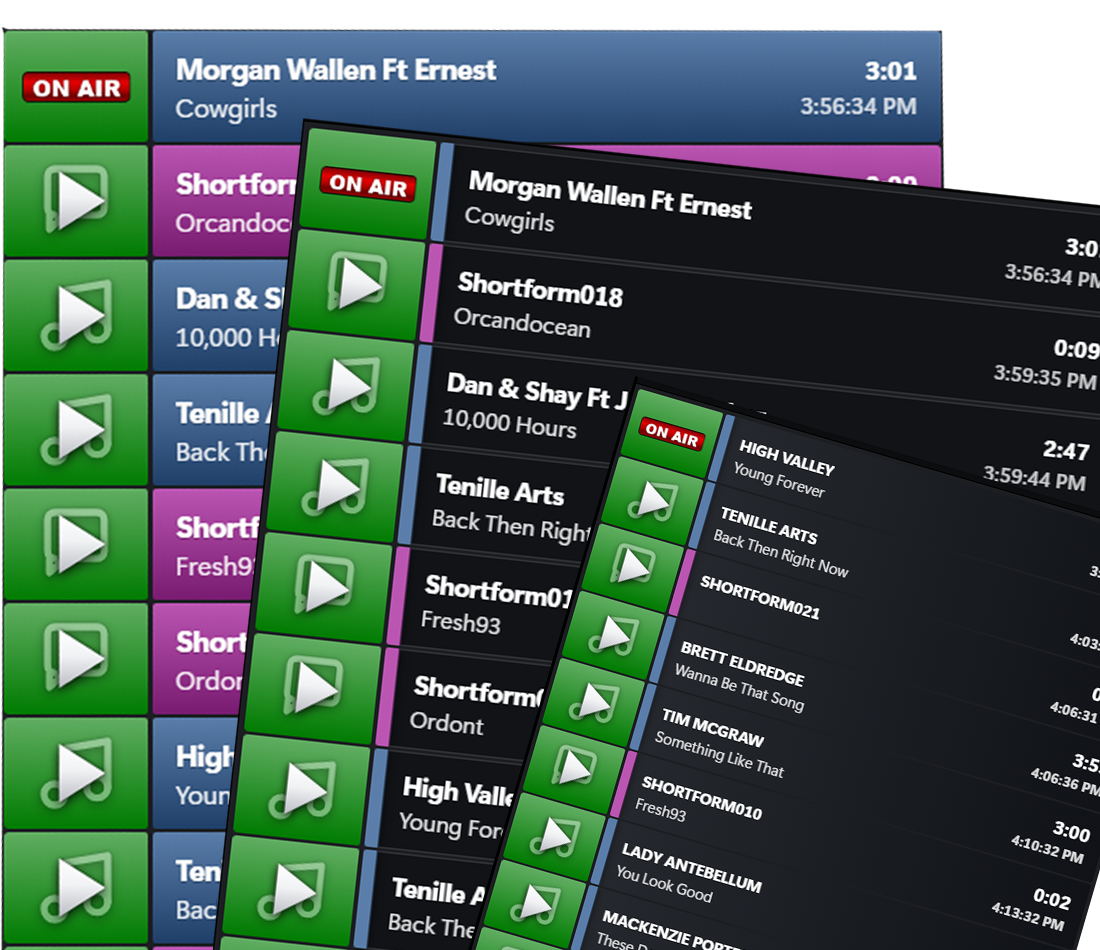
Pick from multiple stack themes and set up the layout so it looks and works the way your studio does.
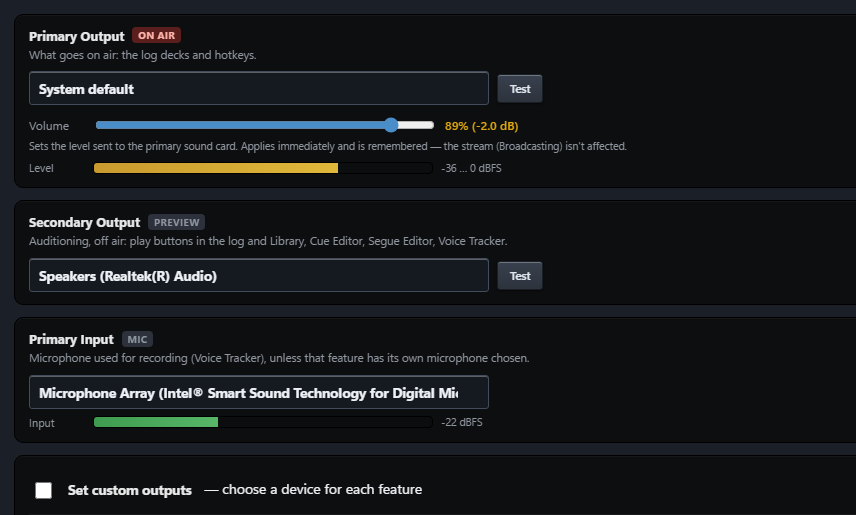
Send air, preview and voice tracking to separate sound cards, so cueing up the next song never ends up on air.
Beta program
We're inviting a small group of stations to run OnCue before launch. Tell us about your station and your setup, and we'll be in touch one-on-one.